

What is it?
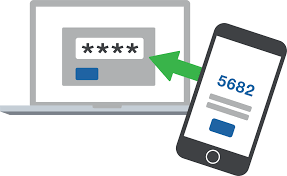
Two-step verification is an additional layer of security for accessing your account, which helps prevent hacking attempts and data theft. It works by using a code-generating application after it has been installed and configured on your phone.
Why is it needed?
Two-step verification helps protect your account:
- when using the same password on different websites;
- when downloading software from the internet;
- when using public computers;
- when clicking links in emails.
The security level of your account is significantly increased. Unauthorized access to your email becomes impossible, even if your password has been stolen.
How does it work?
- First, you enter your login and password;
- Then — a one-time code from the application installed on your phone.
Compatibility
Works with any mobile phone that can install an application for generating codes.
How to enable?
1) Install an application
- Android (FreOTP, Google Authentificator, Other)
- iOS (FreOTP, Google Authentificator, Other)
- Windows Phone (Authentificator, OTP Authentificator, Other)
2) Configure your account
- Log in to your account via the web interface;
- Go to your user profile;
- Open “Two-step authentication” → “Enable”;
- Scan the QR code using your installed application;
- Enter the code in the “PIN code” field;
- Click “Verify and save”.
After successful setup, you will be required to enter a code each time you log in. The code will be generated by the application installed on your phone.
How to disable?
- Go to “User profile”;
- Select “Two-step authentication”;
- Click “Disable” and confirm the action.
Problems with the code
If the code does not work — check the time on your phone or enable automatic time synchronization.
If the phone is lost or the app was deleted
Perform password recovery. After that, two-step verification will be automatically disabled for your account, and you will be able to log in using your new password.
When You register your mailbox, Your entered personal data is automatically taken for creating Your account. If You 've entered incorrect information or it has been changed, You can fix it.
If You want to change Your basic personal data, You can do it in the "User profile" (more).
If You want to change only that data , which is seen to the recipients of Your letters, You can do it in "Options" - more information here.
Why are you receiving this notification?
To increase the security of mailboxes registered in inbox.pk against online threats, and to help users keep up with their account security, any user of our email servers could receive an informative notification about unusual login activity: for example, about attempts to log in to a user account from unusual browsers or devices. Unfortunately, inbox.pk cannot determine what person is attempting a specific login, so you should bear in mind that you may receive this when you use your email for the first time on a new computer, phone or browser; if you use your browser’s incognito or private browsing mode; if you have deleted your cookies; as well as if someone else has accessed your account.
What to do if someone else has logged in to your mailbox?
If, after receiving this notification, you feel that someone else may have accessed your email, we recommend the following actions for your security:
- Update your account password,
- Change your secret question and answer,
- Add an alternative email address and/or your phone number to your account’s profile settings,
- Apply an additional inbox safety feature - two-step verification,
- If you access your emails using POP3/IMAP protocols, we recommend checking to see if data encryption (TLS/SSL) is enabled,
- Temporarily remove alternative access to your mailbox through Facebook and Twitter.
How to switch off this notification?
If you are sure that no suspicious activity is taking place in your account and you would no longer like to receive notifications regarding suspicious access to your account, go to Settings -> User profile -> Notifications, remove the check from “Receive notifications for suspicious account access,” and press Save.
Where to find out more about a specific login?
In the informative message you received, the following information is available:
- Date - when and at what time the suspicious login took place,
- Country - from which country the access occurred,
- Operating system - what kind of device was used for the login, whether a Windows/Linux system or mobile phone (Android / iOS.)
Meanwhile, on your profile, you can see the IP address of the last successful login; if you still need further information, send a request from your mailbox to support@inbox.pk
On the first page of „User profile” there is an informative data about last successful authorization date and IP address, also as information about Your account registration.
This information can be helpful for Your independent control of access to Your email. This way You can opportunely reveal unsanctioned access to Your email and report it to Inbox.lv.
